(Monthly & Quarterly)
Running a small business is already a full-time job.
Your website should support your business — not become another source of stress.
This checklist breaks down what actually needs to be maintained on a WordPress site, how often, and what small business owners can realistically handle themselves.
No fluff. No agency jargon.
Why WordPress Maintenance Matters
WordPress websites don’t usually “break” overnight.
They slowly become:
- outdated
- insecure
- slower
- more fragile with every update skipped
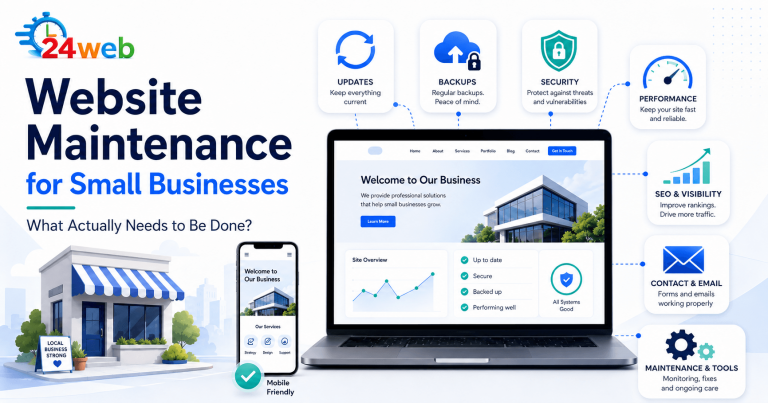
Regular maintenance helps you:
- avoid security issues
- prevent downtime
- keep your site fast and reliable
- catch small problems before they turn expensive
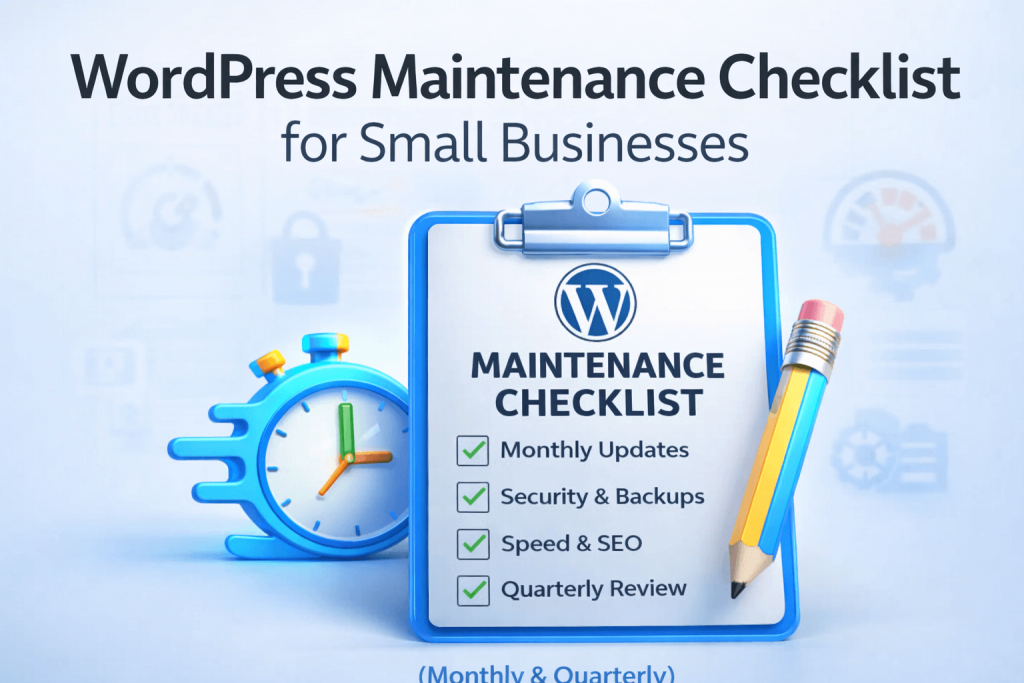
Monthly WordPress Maintenance Checklist
(Essential for every small business)
These are the bare minimum tasks that should happen every month.
1. Update WordPress Core, Themes, and Plugins
- Check for available updates
- Update one at a time
- Make sure nothing breaks visually
⚠️ Always back up first (see below)
2. Run a Full Website Backup
- Files + database
- Store backups off-site (not just on your hosting)
- Keep at least 2–3 recent backups
If something goes wrong, this is your safety net.
3. Check for Broken Pages, Forms, and Links
- Test your contact forms
- Click main navigation links
- Submit a test message or order if applicable
Many businesses lose leads simply because forms stop working silently.
4. Review Security & User Access
- Remove unused plugins and themes
- Delete old admin accounts
- Make sure passwords are strong
Unused plugins are a common security risk.
5. Check Website Speed (Quick Scan)
- Run a speed test (desktop + mobile)
- Look for obvious red flags (very slow load, large images)
You don’t need to optimize monthly — just monitor.
Quarterly WordPress Maintenance Checklist
(Deeper health checks every 3 months)
These tasks go a bit further and help keep your site healthy long-term.
6. Review Plugin & Theme Usage
Ask yourself:
- Do I still need this plugin?
- Is it actively maintained?
- Is it overlapping with another plugin?
Fewer plugins = fewer problems.
7. Check Mobile & Browser Compatibility
- Test your site on:
- iPhone / Android
- Chrome / Safari
- Look for layout or spacing issues
Small updates can cause subtle mobile bugs.
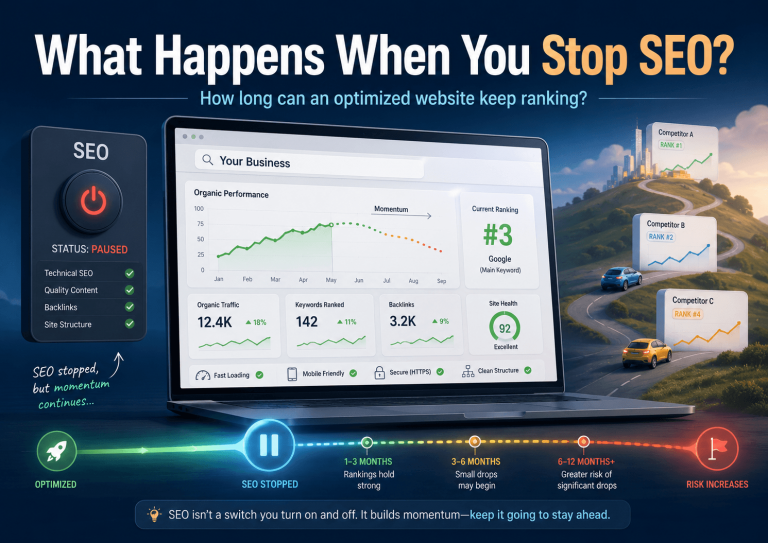
8. Check for SEO & Technical Issues
- Make sure pages are indexed
- Check for broken redirects or 404 errors
- Confirm SSL is active (https)
You don’t need “advanced SEO” — just keep the basics clean.
9. Review Hosting Health
- Check disk space usage
- Review uptime reports (if available)
- Make sure PHP version is supported
Outdated hosting settings can cause performance and security issues.
10. Test Your Backup Restore (Important!)
A backup is only useful if it works.
At least once a quarter:
- Confirm backups are restorable
- Verify files + database are included
Many people discover too late that their backups were incomplete.
What Small Business Owners Can DIY (Safely)
You can usually handle:
- basic updates
- content changes
- simple backups
- visual checks
As long as you:
- take backups first
- don’t rush updates
- know when to stop
When It’s Better to Get Help
You should consider professional support if:
- updates regularly break your site
- you don’t have time to test things properly
- security issues keep popping up
- you rely on your website for leads or sales
Maintenance isn’t about doing everything — it’s about doing the right things consistently.
Final Thought
A well-maintained WordPress site doesn’t need constant attention —
it needs regular, calm, preventive care.
If you’re not sure whether your site is in good shape, a quick check can save a lot of time and stress later.