A contact form can fail silently—no error message, no warning, just… no leads. For a small business, that’s painful: people try to reach you and you never even know. Here’s a simple, reliable way to test your contact forms, confirm emails are being delivered, and make sure every lead actually reaches you.
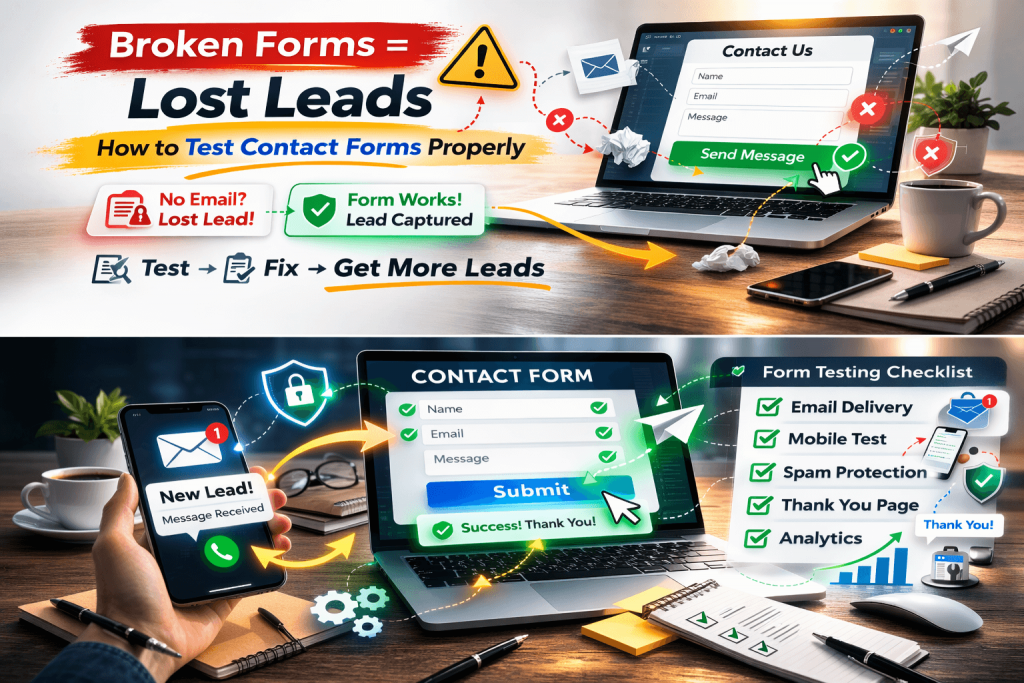
The most common ways forms “break”
Before we test, here’s what usually goes wrong:
- Emails don’t deliver (they go to spam or never arrive)
- Form submits but doesn’t send notifications
- Form is blocked by security plugins / firewalls
- Form works on desktop but fails on mobile
- Required fields are too strict or buggy
- Captcha blocks real users
- Your email provider rejects messages because your site isn’t authenticated (SPF/DKIM/DMARC issues)
Step 1: Make a list of every form on your site
Don’t assume you only have one. Check for:
- Contact page form
- Homepage “Request a quote” form
- Footer mini form
- Popups
- Landing pages
- Booking/appointment forms
Goal: test all of them, not just the “main” one.
Step 2: Do a real submission test (the right way)
For each form, submit a test using:
Test A (normal user)
- Name + a real email you can check
- Short message
- Submit
Test B (edge case)
- Long message (3–5 sentences)
- Add a phone number
- Try a “weird” character like:
&or' - Submit again
Check immediately:
- Do you see a success message?
- Do you receive the email notification?
- Does the message land in Inbox or Spam/Promotions?
Step 3: Confirm where the email is going (recipient + reply-to)
This is a big one. Many forms send to the wrong place after updates or changes.
In your form settings confirm:
- To email = your correct business email
- CC/BCC (optional) = a backup recipient (recommended)
- Reply-To = the visitor’s email (so you can hit Reply and respond)
Pro tip: set a backup recipient like:
yourbusiness@gmail.comor a second inbox you check
So if your main email has issues, you still get leads.
Step 4: If emails don’t arrive, fix deliverability (the #1 cause)
Most websites can’t reliably send email “out of the box” because hosting mail gets flagged.
Best solution for small business sites:
- Use an SMTP plugin (WordPress) connected to a real email provider
- Google Workspace / Gmail
- Microsoft 365
- Mailgun / SendGrid (more technical)
After setup, repeat Test A and confirm emails arrive fast (within seconds).
Step 5: Test on mobile + different browsers
Forms often break because of scripts, caching, or theme conflicts.
Test on:
- iPhone Safari
- Android Chrome
- Desktop Chrome + Firefox
Quick mobile checks:
- Can you tap into each field easily?
- Does the keyboard cover the submit button?
- Does the page jump or freeze on submit?
Step 6: Check required fields and validation
Common issues:
- Phone number field requires a format users don’t type
- “Message” field has too short/long limits
- Email field rejects valid emails
Make forms easy:
- Only require what you truly need: Name + Email + Message
- Phone should usually be optional
- Avoid “clever” validation rules
Step 7: Check spam protection (don’t block real customers)
Spam protection is good—until it blocks actual leads.
If you use reCAPTCHA/hCaptcha:
- Do a test on mobile
- Try with VPN off and VPN on (some captchas get aggressive)
- Make sure the captcha actually loads
If spam is heavy, consider:
- A hidden honeypot field
- Rate-limiting
- Turning on basic form plugin anti-spam options
Step 8: Confirm form entries are saved (safety net)
Email is not enough. The best setup is:
- Email notification plus
- Form entries stored in the database/dashboard (or sent to a CRM)
Many form plugins support this (or via add-ons). This means:
Even if email fails, your lead still exists.
Step 9: Track form conversions (so you know it’s working)
If you run ads or want to measure ROI, tracking matters.
Minimum tracking setup:
- A thank-you page after submission (easiest)
- Example:
/thank-you/
- Example:
- Track that page view as a conversion in GA4
If you don’t have a thank-you page:
- Track a “form_submit” event via your form plugin or Tag Manager
5-minute quick checklist
Use this monthly:
- ✅ Submit test form (desktop + mobile)
- ✅ Confirm notification email received
- ✅ Check spam folder
- ✅ Confirm Reply-To works
- ✅ Confirm backup recipient receives it too
- ✅ Confirm entries are stored (if supported)
Signs your form is broken (even if nobody tells you)
- Sudden drop in inquiries, but traffic is stable
- People start calling saying “I filled the form but…”
- You only get leads from one page, never from others
- Your inbox gets nothing, but the website looks “fine”
Want the easiest “small business” setup?
If you want a simple setup that almost never fails, do this:
- SMTP configured
- Backup recipient
- Save entries in dashboard
- Thank-you page tracking
That’s it. No agency complexity: just reliable lead capture. 24web.ca can help.