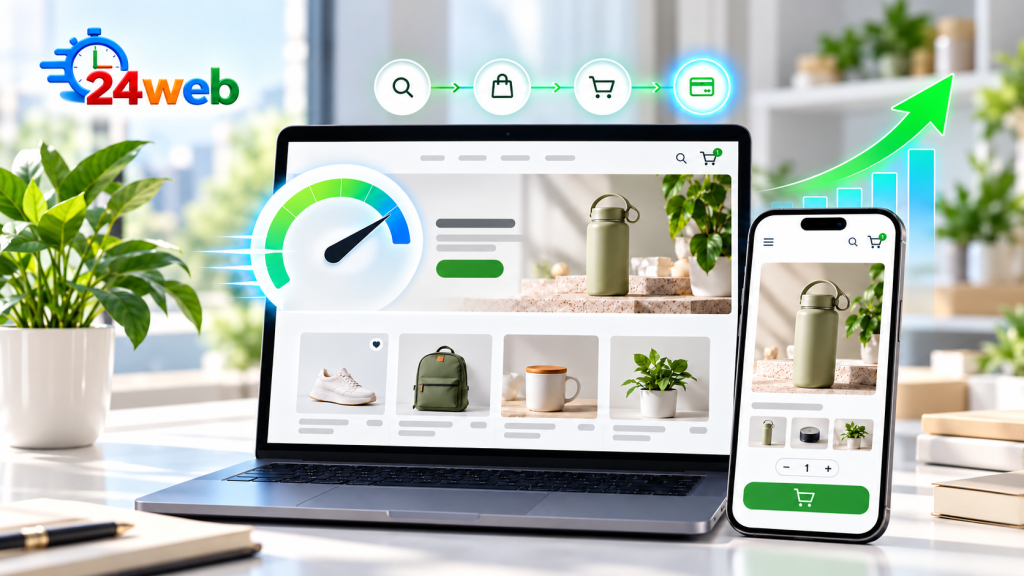
A Shopify store can have great products and a strong brand, but still lose sales if the shopping experience feels slow, confusing, or difficult to use. Speed and conversion rate are closely connected: when pages load quickly and customers can move from product discovery to checkout without friction, more visitors have a chance to become buyers.
The good news is that improving a Shopify store does not always require a complete redesign. In many cases, practical changes to images, apps, mobile layouts, product pages, and checkout can make a noticeable difference.
This guide covers five areas to review if your Shopify store feels slow or receives traffic without enough orders.
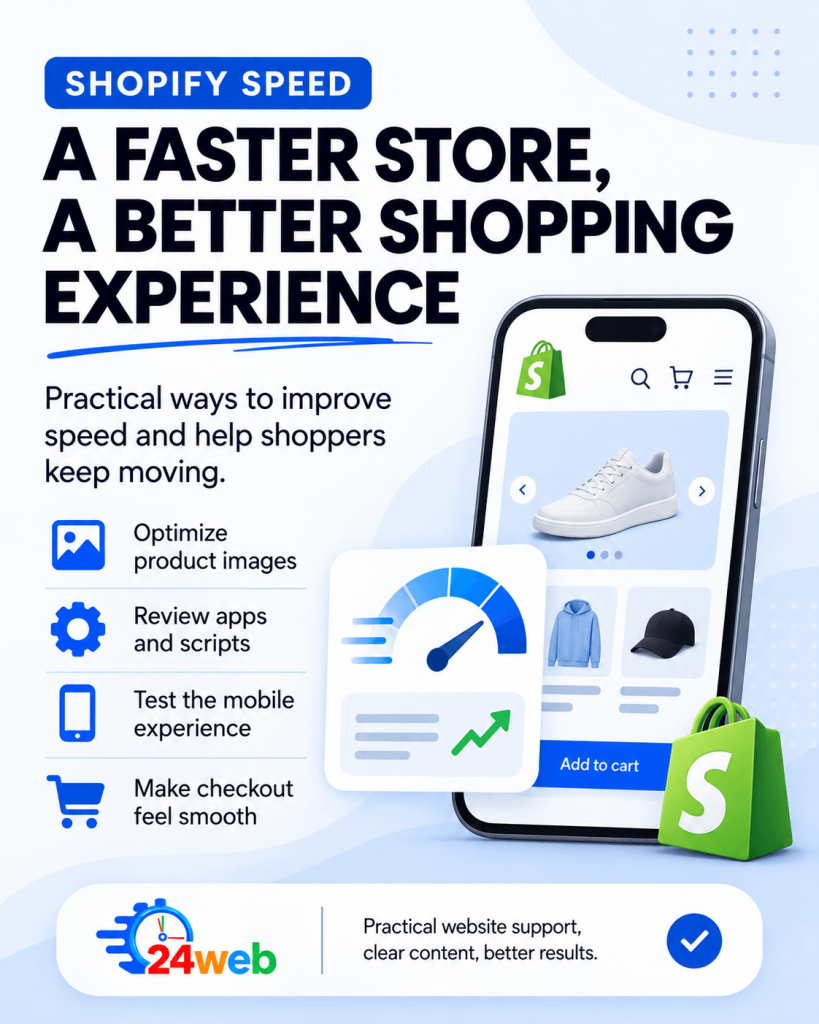
1. Optimize Product Images Before Anything Else
Large product images are one of the most common reasons an online store loads slowly. High-quality photos matter, but uploading every image at its original camera or design-export size can create unnecessary weight for customers to download.
Review the images on your homepage, collection pages, product pages, and promotional banners. Resize images to the dimensions they actually need, use modern formats when your theme supports them, and avoid uploading several nearly identical photos that do not add useful information.
- Use clear product photos that are large enough to inspect but not oversized.
- Compress images before uploading them to Shopify.
- Use descriptive file names and useful alt text.
- Check hero banners and background images on mobile devices.
- Remove images that are no longer used by the theme or campaigns.
Shopify also provides guidance on how theme structure and media affect online store speed. You can review the Shopify page speed documentation when you are checking the technical side of your theme.
2. Clean Up Apps and Tracking Scripts
Apps can add valuable features, but each app may also add JavaScript, CSS, tracking requests, popups, or extra code to your storefront. Over time, a store can collect apps that are no longer needed, duplicate features already available in the theme, or load scripts on pages where they are not useful.
Make a list of every installed app and ask what it contributes today. If an app is not being used, remove it and check whether it left code behind. If two apps perform similar jobs, keep the one that is more reliable and lighter on the storefront.
- Remove apps that are no longer active.
- Replace multiple small apps with one well-supported solution where possible.
- Review review widgets, chat tools, popups, countdown timers, and recommendation scripts.
- Ask whether an app needs to load on every page.
- Retest the store after removing or changing an app.
Be careful when making changes to sales, payment, shipping, or analytics tools. Document what you remove, test the storefront as a customer, and confirm that important events such as add-to-cart and purchase tracking still work.
3. Treat Mobile Performance as a Sales Issue
A store can look excellent on a large monitor and still be difficult to use on a phone. Mobile visitors may be dealing with a slower connection, a smaller screen, and less patience for scrolling past large banners or closing popups.
Open your store on several phones and test the full buying journey: homepage, collection page, product page, cart, and checkout. Do not only check whether the page technically loads. Check how quickly a customer can understand the offer and tap the next step.
- Make sure the menu and search function are easy to find.
- Keep important product information above unnecessary decorative content.
- Use buttons that are easy to tap without zooming.
- Reduce popups that cover the product or add-to-cart button.
- Check that variant selectors, quantity controls, and payment buttons work smoothly.
If mobile traffic is high but mobile orders are low, the issue may be less about marketing and more about usability. Compare mobile and desktop conversion rates in your analytics, then test the mobile experience from the perspective of someone who has never used the store before.
4. Improve the Layout of Your Product Pages
Product pages need to answer customer questions quickly. Visitors should understand what the product is, who it is for, what it costs, when it will arrive, and what to do next without searching through a crowded layout.
Start with a clear product title, useful images, a concise benefit-focused description, visible pricing, and an obvious add-to-cart button. Put important information such as sizes, materials, compatibility, shipping, returns, and availability close to the buying decision.
- Lead with the product’s main customer benefit.
- Show the most important image first and include useful detail views.
- Explain delivery timing and shipping costs before checkout.
- Use reviews, guarantees, policies, and secure-payment signals where appropriate.
- Make variants, stock status, and quantity selection easy to understand.
- Recommend related products only when they genuinely help the customer.
If you want to understand why visitors are viewing products but not buying, review our guide on using Shopify Analytics to find where a store is losing sales. It explains how to connect traffic, product views, carts, checkout activity, and average order value instead of focusing on one number alone.
5. Remove Friction from Cart and Checkout
Customers can be ready to buy and still abandon the order if the final steps create uncertainty. Unexpected shipping costs, unclear delivery dates, limited payment choices, discount-code problems, or a confusing cart can all interrupt the purchase.
Place yourself in the customer’s position and complete a test order on both mobile and desktop. Look for anything that makes the next step unclear or forces the customer to leave checkout to find an answer.
- Show shipping costs and delivery expectations as early as possible.
- Make the cart easy to edit without losing products or selections.
- Offer payment methods your customers recognize and trust.
- Check that discount codes and gift cards work correctly.
- Remove unnecessary fields, distractions, and dead ends.
- Review abandoned checkout data and look for patterns over time.
Checkout improvements do not always mean adding more features. Often, the best change is to explain the existing process more clearly and reduce the number of decisions a customer must make.
Measure the Changes Before You Judge Them
Before making improvements, record a baseline. Note your current conversion rate, mobile conversion rate, add-to-cart rate, checkout completion rate, average order value, and page-speed results. Then change one important area at a time and give it enough time to collect useful data.
| Area | What to review | Possible action |
|---|---|---|
| Images | Load time and image size | Resize, compress, and remove unnecessary media |
| Apps | Scripts and storefront features | Remove unused apps and duplicate tools |
| Mobile | Mobile conversion and usability | Improve layout, buttons, menus, and popups |
| Product pages | Views, add-to-cart activity, and sales | Clarify benefits, policies, variants, and trust signals |
| Checkout | Cart and checkout abandonment | Clarify shipping, delivery, payment, and discounts |
Final Thoughts
Improving Shopify speed and conversion rate is usually a series of practical decisions, not one magic setting. Start with the largest sources of friction: oversized images, unnecessary apps, weak mobile usability, unclear product pages, and a checkout process that leaves customers with unanswered questions.
Review your numbers before and after each change, and use customer behaviour to decide what to fix next. If your store needs a broader review, our small business SEO audit guide can help you organize the technical, content, and visibility checks that support a healthier website.
At 24Web, I help small business owners improve Shopify stores, product pages, mobile experiences, tracking, and website performance so more of the right visitors can become customers.